

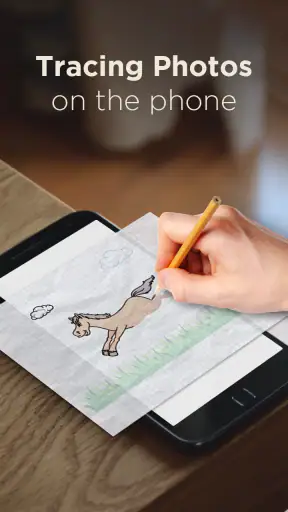
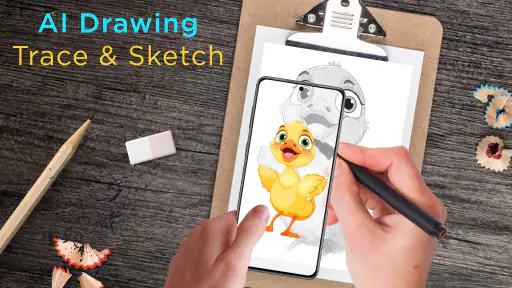
I approached AI Drawing: Trace & Sketch as a beginner rather than an experienced illustrator, and that made its purpose clear quite quickly. This is an art and design app built around helping you draw from a visual reference on paper. Instead of asking you to invent a picture from a blank page, it gives you a guided way to follow an image, sketch its main shapes, and add color with the help of augmented reality. I found that idea especially useful when I wanted a low-pressure starting point.
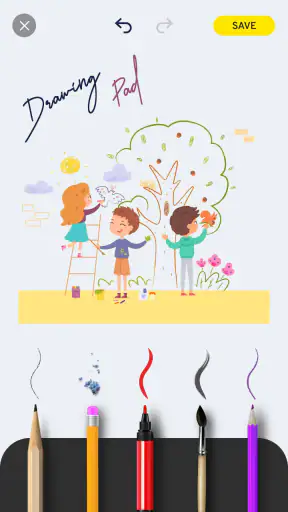
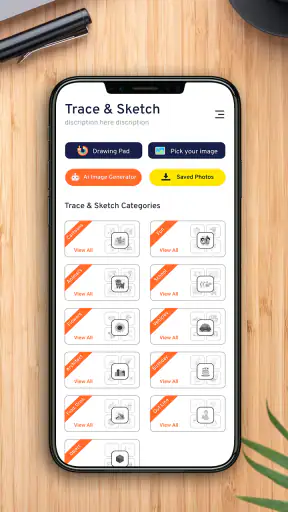
The app is free to install, carries an Everyone age rating, and comes from The App Company INC. Its store summary focuses on learning to draw, tracing, and painting with AR, while the short description calls it AI Drawing. Those labels are brief, but they point toward the most important thing to understand: this is not a full digital illustration studio. It is more like a bridge between a reference image and a physical drawing surface.
That distinction matters. If you already use a tablet with layers, brushes, selection tools, and detailed export controls, you may find the experience limited. If, however, you have ever looked at a picture and thought, “I would like to draw this, but I do not know where to begin,” the guided approach is much easier to appreciate.
What the first session feels like
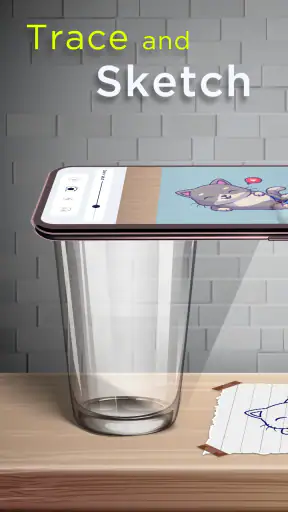
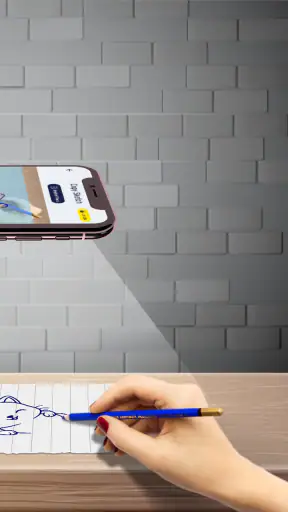
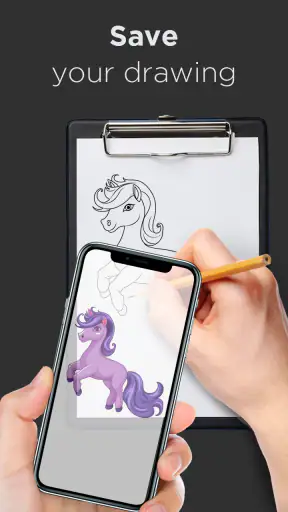
My first impression was that the app is designed to reduce the intimidation of drawing. You do not have to face a completely empty sheet and decide how to construct a subject from memory. The reference becomes the starting point, and the AR view helps you position that reference over paper so you can follow it by hand.
The most useful mindset is to treat the projected image as a guide, not as a magic pencil. Your hand still does the actual drawing. The app can help with placement and proportion, but it cannot make a shaky line look intentional or decide how much detail belongs in the final sketch. I got better results when I slowed down and concentrated on large outlines before worrying about small features.
That makes the app suitable for several kinds of users. A child can use it as an approachable drawing exercise, an adult can use it to practice observation, and a casual hobbyist can use it when looking for a quick creative activity. It also works well for someone who wants to make a handmade card, decorate a notebook, or copy a simple subject onto paper without taking a formal art class.
The audience size suggests that the concept has broad appeal: the app has passed five million installs and holds a 4.1 average from around 9,100 ratings. I would read that as evidence that many people find the basic idea useful, while also remembering that an average score cannot tell you whether it matches your particular drawing habits.
What it does better than a blank canvas
The strongest advantage is the reduction of decision fatigue. On a blank page, a beginner has to choose the subject, estimate its proportions, decide where to place it, and work out how to simplify it. A tracing workflow removes several of those barriers at once. That does not replace learning, but it lets you practice hand control and shape recognition sooner.
I also like the physical nature of the process. Drawing directly on paper feels different from drawing on a glass screen. You can use ordinary pencils, colored pencils, or other materials you already enjoy, and the result remains a physical object. For people who find digital drawing slippery or disconnected, that can make practice feel more rewarding.
Compared with searching for a step-by-step video, the AR approach can be more immediate. A video may explain a process well, but you still have to transfer the example to your own page. Here, the visual guide sits over the area where you are working, so the relationship between reference and paper is easier to see. The trade-off is that you receive less verbal instruction about why a line should be drawn a certain way.
Where it is not the best choice
I would not choose this app as my main tool for finished digital artwork. It is not the natural alternative to a professional drawing application, a vector editor, or a layered painting program. Those tools are better when you need precise editing, reusable shapes, advanced brush control, or a file that can be revised repeatedly.
I would also hesitate to recommend it to someone who wants a completely independent drawing practice. Tracing can help with confidence, but copying a visible guide does not automatically teach anatomy, perspective, lighting, or composition. To get more from the experience, I would use the app for a first pass and then try drawing the same subject again with the guide hidden or removed.
There is another practical limitation: AR drawing depends on the relationship between the phone, the surface, and your hand. If the device shifts, the projected guide may no longer line up with your sketch. That can be frustrating, particularly when you are working on a detailed picture. I found the method much more comfortable for simple or medium-detail subjects than for tiny, intricate drawings.
Getting from installation to a usable setup
The app supports Android seven point zero and later, which covers a wide range of devices. After installing it, I would begin with a clean, uncluttered work area rather than immediately choosing the most complicated image available. A stable table, a sheet that does not slide easily, and enough light to see your pencil marks make a noticeable difference.
The first setup is less about artistic skill and more about physical positioning. Place the paper where you want the finished drawing to appear, then arrange the phone so you can view the guide and your hand without constantly bumping the device. If you are using a phone stand, even an improvised one, the session becomes easier because you are not trying to hold the phone while drawing.
I recommend testing alignment with a few simple marks before committing to a full picture. Draw a short line, check whether the projected guide remains in the same place, and adjust the phone or paper if necessary. This small test can save you from completing half a drawing only to discover that the reference has drifted.
One detail beginners often overlook is lighting. Strong glare on the screen can make the AR overlay harder to follow, while a dark room can make your paper marks difficult to see. Soft, even light is more useful than simply making the room as bright as possible. I also found it helpful to keep the phone screen clean, because fingerprints can make a transparent guide look less clear.
The app is free, but it includes in-app purchases ranging from $3.99 to $7.99 per item. I would start with the free experience and decide only after understanding how often I actually use the drawing workflow. That approach is sensible for a casual user, especially because the basic value of the app is easy to judge during a short session.
Your first meaningful success
For a first attempt, choose a subject with a clear outer shape: a simple animal, a basic object, or a cartoon-style figure is more forgiving than a face with subtle proportions. The goal is not to produce a gallery-ready illustration. The goal is to finish a recognizable drawing while learning how the guide, paper, and your hand work together.
I would begin by lightly marking the largest outline. Pressing too hard at this stage makes corrections difficult and can leave grooves in the paper. Once the overall shape looks right, add the major interior divisions, such as the separation between a head and body or the broad shapes of clothing and objects. Only then would I add small details.
This order is one of the most useful habits the app can encourage. Beginners often focus on eyes, buttons, fur, or decoration before checking whether the whole subject fits the page. The AR guide makes it tempting to copy every visible line, but a convincing drawing usually depends more on the large relationships than on the number of details.
A realistic everyday use case would be preparing a handmade birthday card after work. I could select a friendly subject, position the paper on the table, trace the main form with a light pencil, and then use colored pencils to finish it. The app would not design the card for me, but it would remove much of the anxiety around getting the central illustration started.
Another useful workflow is making a reference copy for a craft project. If I wanted to sketch a plant, mascot, or decorative object onto a journal page, I could use the guide to establish placement and then personalize the result with my own colors and lettering. In that situation, the app is valuable not because it creates a perfect duplicate, but because it gives me a dependable structure to build on.
How to turn tracing into actual practice
The biggest risk is becoming dependent on the overlay. To avoid that, I would divide a session into stages. First, trace the reference lightly. Next, put the phone aside and reinforce only the lines that make the subject readable. Finally, try a small redraw from memory or observation. This turns a copying exercise into a basic lesson in seeing proportions.
Another effective trick is to simplify the reference deliberately. Rather than following every contour, identify the subject as a collection of circles, rectangles, curves, and angled shapes. The app can show you where those forms sit, but you decide which ones matter. This produces a cleaner drawing and helps you understand construction instead of merely following pixels.
I would also keep the first few finished sketches rather than judging each one immediately. Comparing them later reveals whether your lines are becoming more confident or whether the same alignment problem keeps returning. That personal record is more useful than chasing a perfect result on the first try.
Common confusion and small sources of frustration
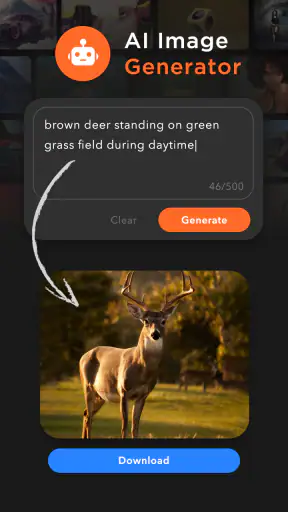
The word “AI” may lead some people to expect automatic image generation or a tool that completes artwork on command. I would set that expectation aside. The practical experience is centered on drawing with a visual guide and using AR to support tracing and painting. The app helps you act; it does not remove the need to act.
It is also easy to confuse tracing accuracy with drawing quality. A perfectly positioned outline can still look flat if the pressure, line weight, and color choices are inconsistent. Conversely, a slightly imperfect outline can look charming once you add confident details. I found it better to use the guide for structure and then make the final marks feel like my own.
Phone movement is another likely source of confusion. If the guide seems to slide, the problem may not be the drawing itself. Check whether the device has been nudged, whether the paper has moved, or whether your hand is blocking the area you are trying to follow. A stable setup is not optional for detailed work; it is part of the technique.
Some users may also wonder whether the app is appropriate for children. The Everyone rating makes it suitable for a broad audience, and the basic idea is approachable, but younger children may still need help positioning the phone and keeping the paper steady. I would treat it as a shared activity at first, especially if the child is more interested in coloring than in carefully tracing an outline.
The purchase model deserves a calm approach as well. Because the app is free to start, you can evaluate the workflow before spending anything. If the available experience already meets your needs, there is no reason to purchase simply because optional items exist. If you use it regularly and find the added material worthwhile, the listed per-item range gives you a clear sense of the spending scale.
The current version is 5.4, so I would keep the app updated through the normal store process when updates are available. I would not expect an update number by itself to change the fundamentals of the experience: the important question remains whether the AR alignment and drawing flow feel comfortable on your particular phone.
Comparison with familiar alternatives
Compared with a traditional step-by-step drawing book, this app gives more direct help with placement on your own page. A book is better for explanations, exercises, and learning concepts such as perspective or shading. I would choose the book when I want structured study, and the app when I want to make something recognizable quickly.
Compared with a digital sketching app, this one is more tactile but less flexible. Digital tools usually make it easy to undo, resize, duplicate, and recolor a drawing. Here, the physical paper gives the result a personal feel, but mistakes are harder to erase cleanly and the process is less convenient for extensive revisions.
Compared with free online drawing tutorials, the app offers less instruction but a more direct connection between reference and paper. Tutorials are better when I want to understand a technique. The AR workflow is better when I already know what I want to draw and mainly need help getting the proportions onto the page.
That comparison explains my overall view. This is a focused helper, not an all-purpose art education platform. Its value is highest at the moment when motivation is present but confidence is missing. It gives that motivation somewhere to go.
Who should try it and what to do next
I would recommend AI Drawing: Trace & Sketch to beginners who want a reassuring first step, parents looking for a simple creative activity, and hobbyists who enjoy drawing on real paper. It is also a useful choice for quick projects where a recognizable illustration matters more than developing a polished digital file.
I would skip it if my main goal were professional digital illustration, advanced editing, or a complete drawing curriculum. In those cases, a dedicated art app or a structured course would serve me better. I would also skip it if I disliked tracing on principle, since the central workflow would feel restrictive rather than helpful.
For everyone else, I suggest starting with one uncomplicated subject and setting a modest target: complete the outline, add a few personal details, and stop before the session becomes tiring. On the next attempt, change the colors or redraw part of the subject without the guide. That is where the app starts moving from a tracing aid toward a genuine practice tool.
The developer, The App Company INC, has kept the concept easy to understand, and the free entry point makes experimentation straightforward. My honest recommendation is to judge it by the quality of your first finished page, not by the promise of the word AI. If the app helps you sit down, make a drawing, and feel ready to try again, it is doing its job well.
After using it, I see the best results coming from a balanced routine: use the AR guide for proportion, rely on your own hand for expression, and occasionally work without assistance. The real strength is not automatic perfection; it is making the first successful drawing feel achievable. For a free art and design app aimed at an Everyone audience, that is a practical and worthwhile role.


